# Dashboard
> Monitor your WhatsApp business at a glance
Source: https://docs.soosh.io/features/dashboard/
 ## Overview
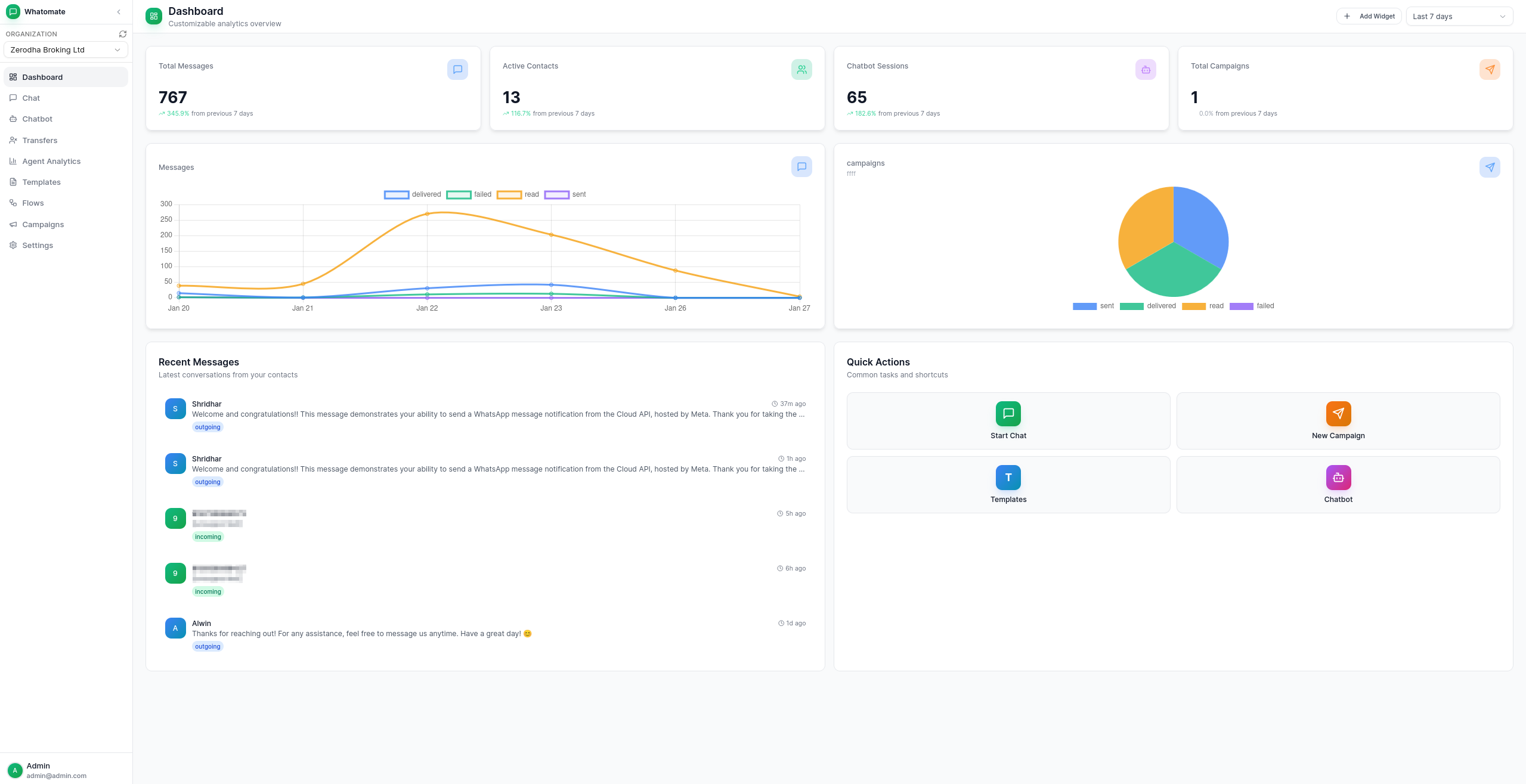
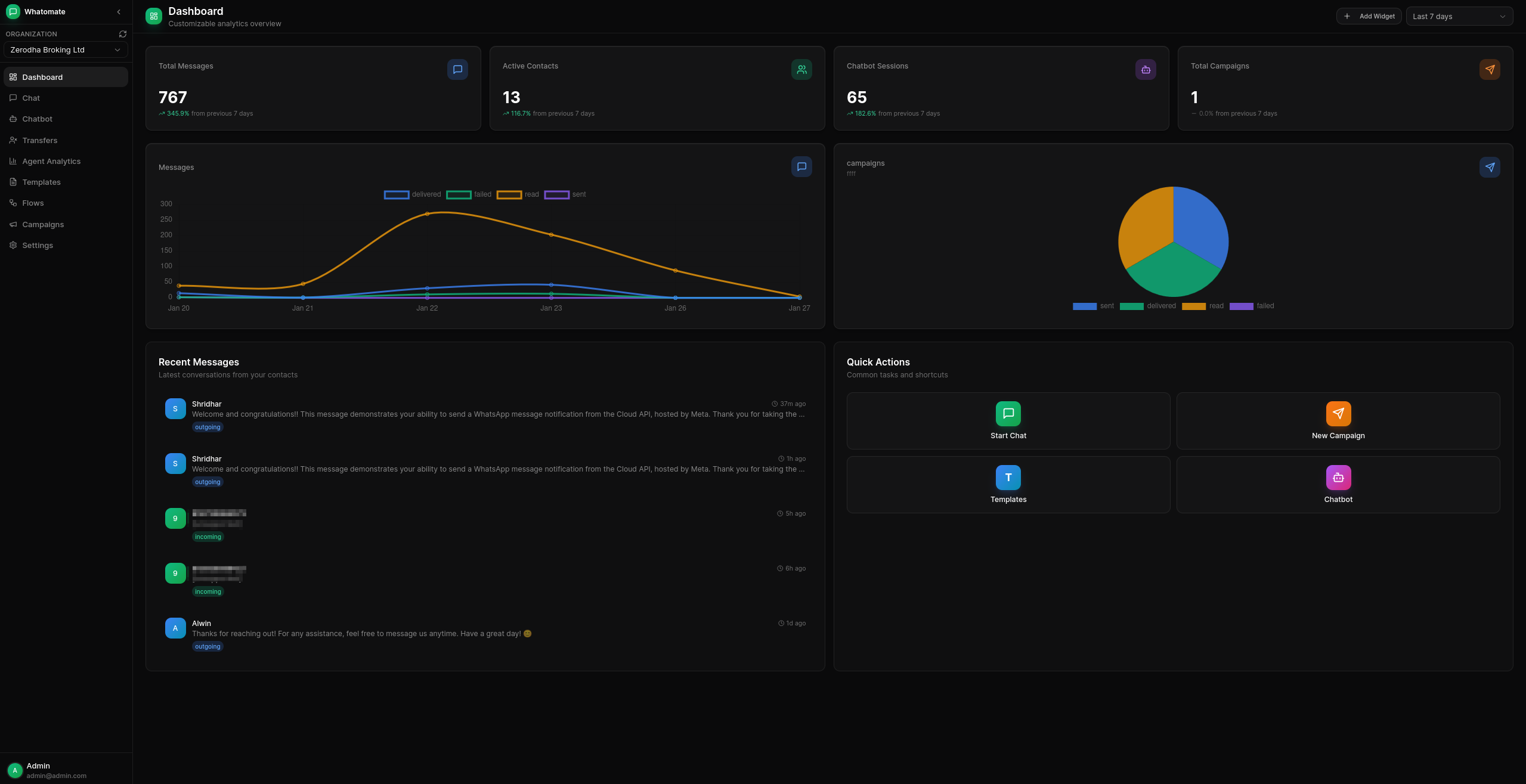
The Dashboard provides a comprehensive view of your WhatsApp business operations. Monitor key metrics, track conversations, and stay on top of your messaging activities.
## Key Metrics
**Total Messages**
Track the total number of messages sent and received across all your WhatsApp accounts.
**Active Conversations**
Monitor ongoing conversations with your customers in real-time.
**Campaign Performance**
View the success rate and engagement metrics of your bulk messaging campaigns.
**Chatbot Analytics**
Analyze how your automated responses are performing.
## Features
### Custom Widgets
Build your own analytics widgets to track the metrics that matter most. Click **Add Widget** to open the widget builder.
Each widget is configured with:
- **Name** — a label displayed on the dashboard
- **Data Source** — choose from messages, contacts, campaigns, transfers, or sessions
- **Metric** — count, sum, or average
- **Display Type** — one of `number` (single value card), `percentage` (value shown as a percentage), `chart`, `table` (tabular breakdown), or `shortcuts` (a static quick-actions tile that needs no data source)
- **Chart Type** — line, bar, or pie (when display type is chart)
- **Group By** — break down chart data by a field value (when display type is chart)
- **Filters** — narrow results by field conditions (e.g., status equals "failed")
- **Color** — visual accent for the widget
- **Share with team** — make the widget visible to other users in your organization
Widgets can be edited or deleted by their owner using the icons that appear on hover.
### Grid Layout
The dashboard is a resizable grid. Each widget stores its own grid position and size (`grid_x`, `grid_y`, `grid_w`, `grid_h`). Drag a widget to reposition it or drag its edge to resize; the new arrangement is persisted in one bulk save so your layout is restored on the next visit.
### Group By Charts
When creating a chart widget, select a **Group By** field to split the data by distinct values of that field.
| Chart Type | Without Group By | With Group By |
|------------|-----------------|---------------|
| **Line** | Single line over time | Multiple lines — one per group value |
| **Bar** | Bars over time | Bars for each group value |
| **Pie** | Slices over time | Slices for each group value |
**Available group-by fields per data source:**
- **Messages** — status, direction, message_type, whatsapp_account
- **Contacts** — whatsapp_account, is_read
- **Campaigns** — status, message_status (aggregates sent/delivered/read/failed counts)
- **Transfers** — status, source
- **Sessions** — status
For example, a pie chart on the **campaigns** data source grouped by **message_status** shows slices for sent, delivered, read, and failed message totals across all campaigns in the selected period.
### Time Range Filters
Filter your metrics by different time ranges:
- **Today** — view metrics for the current day
- **Last 7 days** — week-over-week comparison
- **Last 30 days** — monthly overview
- **This month** — calendar month to date
- **Custom range** — select a specific date range with an interactive calendar
All widgets and dashboard metrics reflect the selected time period. Number widgets also show a percentage change compared to the previous period. Your filter preference is saved locally and persists across sessions.
### Agent Analytics
## Overview
The Dashboard provides a comprehensive view of your WhatsApp business operations. Monitor key metrics, track conversations, and stay on top of your messaging activities.
## Key Metrics
**Total Messages**
Track the total number of messages sent and received across all your WhatsApp accounts.
**Active Conversations**
Monitor ongoing conversations with your customers in real-time.
**Campaign Performance**
View the success rate and engagement metrics of your bulk messaging campaigns.
**Chatbot Analytics**
Analyze how your automated responses are performing.
## Features
### Custom Widgets
Build your own analytics widgets to track the metrics that matter most. Click **Add Widget** to open the widget builder.
Each widget is configured with:
- **Name** — a label displayed on the dashboard
- **Data Source** — choose from messages, contacts, campaigns, transfers, or sessions
- **Metric** — count, sum, or average
- **Display Type** — one of `number` (single value card), `percentage` (value shown as a percentage), `chart`, `table` (tabular breakdown), or `shortcuts` (a static quick-actions tile that needs no data source)
- **Chart Type** — line, bar, or pie (when display type is chart)
- **Group By** — break down chart data by a field value (when display type is chart)
- **Filters** — narrow results by field conditions (e.g., status equals "failed")
- **Color** — visual accent for the widget
- **Share with team** — make the widget visible to other users in your organization
Widgets can be edited or deleted by their owner using the icons that appear on hover.
### Grid Layout
The dashboard is a resizable grid. Each widget stores its own grid position and size (`grid_x`, `grid_y`, `grid_w`, `grid_h`). Drag a widget to reposition it or drag its edge to resize; the new arrangement is persisted in one bulk save so your layout is restored on the next visit.
### Group By Charts
When creating a chart widget, select a **Group By** field to split the data by distinct values of that field.
| Chart Type | Without Group By | With Group By |
|------------|-----------------|---------------|
| **Line** | Single line over time | Multiple lines — one per group value |
| **Bar** | Bars over time | Bars for each group value |
| **Pie** | Slices over time | Slices for each group value |
**Available group-by fields per data source:**
- **Messages** — status, direction, message_type, whatsapp_account
- **Contacts** — whatsapp_account, is_read
- **Campaigns** — status, message_status (aggregates sent/delivered/read/failed counts)
- **Transfers** — status, source
- **Sessions** — status
For example, a pie chart on the **campaigns** data source grouped by **message_status** shows slices for sent, delivered, read, and failed message totals across all campaigns in the selected period.
### Time Range Filters
Filter your metrics by different time ranges:
- **Today** — view metrics for the current day
- **Last 7 days** — week-over-week comparison
- **Last 30 days** — monthly overview
- **This month** — calendar month to date
- **Custom range** — select a specific date range with an interactive calendar
All widgets and dashboard metrics reflect the selected time period. Number widgets also show a percentage change compared to the previous period. Your filter preference is saved locally and persists across sessions.
### Agent Analytics
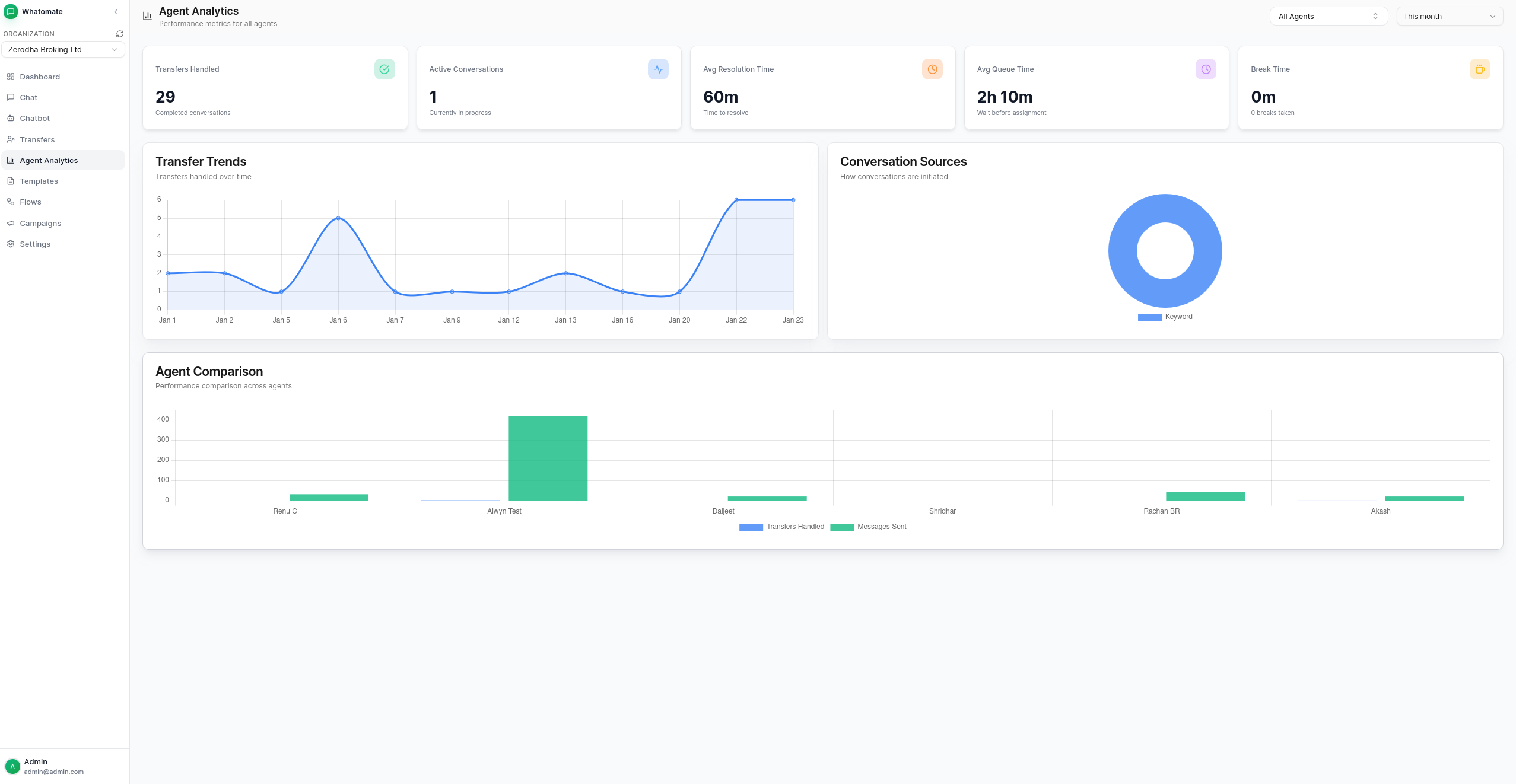
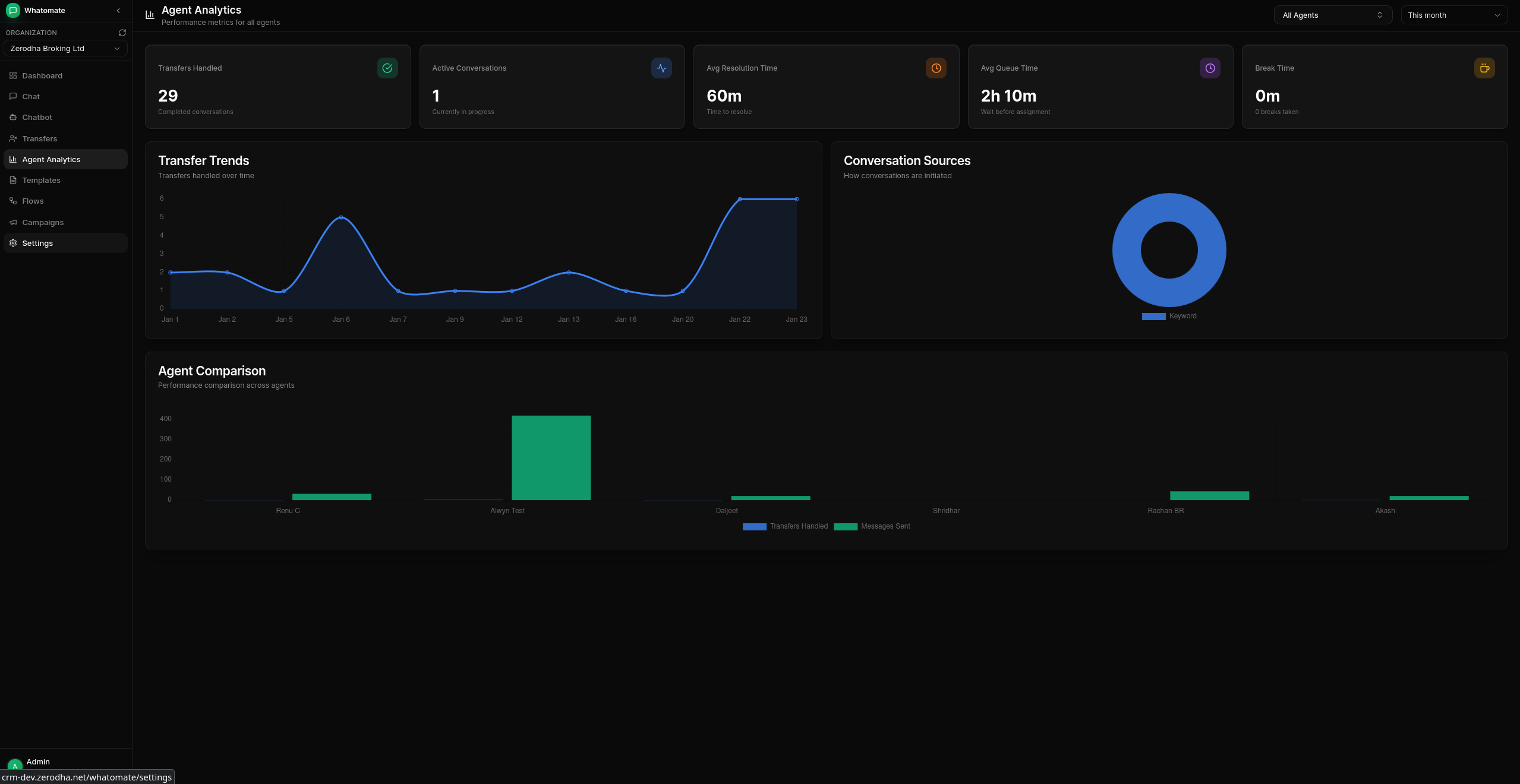 The Agent Analytics page provides performance metrics for your support team, including transfers handled, active conversations, average resolution time, queue time, and break time. It also shows transfer trends over time, conversation source breakdowns, and agent-by-agent comparisons.
### Quick Actions
Access frequently used actions directly from the dashboard:
- Send new message
- Create campaign
- View recent conversations
- Access settings
The Agent Analytics page provides performance metrics for your support team, including transfers handled, active conversations, average resolution time, queue time, and break time. It also shows transfer trends over time, conversation source breakdowns, and agent-by-agent comparisons.
### Quick Actions
Access frequently used actions directly from the dashboard:
- Send new message
- Create campaign
- View recent conversations
- Access settings