Visual Flow Editor
Drag-and-drop node-based IVR builder with 8 node types
WhatsApp voice calling with IVR flow builder, call transfers, and recording
Soosh supports WhatsApp voice calling with WebRTC-based audio bridging. Incoming calls are handled by an Interactive Voice Response (IVR) system built using a visual drag-and-drop flow editor. The IVR plays greetings, collects DTMF input, makes HTTP callbacks, and routes callers to agent teams. Agents answer calls from the browser — no phone hardware required.
Visual Flow Editor
Drag-and-drop node-based IVR builder with 8 node types
Call Transfers
Route callers to agent teams with hold music
Call Hold
Put calls on hold with instant hold music and resume anytime
Call Recording
Record agent-caller audio as OGG/Opus, stored in S3
Outgoing Calls
Agents place outbound calls to contacts from the chat view, once the contact grants call permission
IVR flows are configured from Settings > IVR Flows in the admin UI. The editor uses a visual canvas where you drag and drop nodes, then connect them with edges to define the call flow.
Each flow has:
The flow editor provides 8 node types. Drag them from the palette onto the canvas, configure their properties in the side panel, and connect them with edges.
Plays an audio message to the caller. The audio can be uploaded as a file or generated from text using TTS (text-to-speech).
| Property | Description |
|---|---|
| Audio | Upload an audio file (OGG, MP3, WAV, etc.) — automatically transcoded to Opus |
| TTS Text | Type text to generate audio using Piper TTS |
| Interruptible | Config key interruptible — if enabled, the caller can press a digit to skip the greeting |
The greeting node has one output (default) that connects to the next node.
Plays an audio prompt and waits for the caller to press a DTMF digit. Routes the call based on the digit pressed.
| Property | Description |
|---|---|
| Audio / TTS | The prompt audio (e.g., “Press 1 for sales, press 2 for support”) — config key audio_file |
| Timeout | Seconds to wait for input, config key timeout_seconds (default: 10) |
| Max Retries | Attempts on invalid/no input before following the max_retries edge (default: 3) |
| Options | Digit-to-label mappings (e.g., 1 → “Sales”, 2 → “Support”) |
Output handles:
digit:1, digit:2, etc. — one per configured optionmax_retries — followed once every attempt has been used updefault — the fallback edge, used whenever no exact-match edge exists for the outcomeConnect each output handle to the appropriate next node.
The chosen digit is stored in the call context as last_menu_digit and as menu_<node id>, so
later HTTP callback nodes can interpolate it.
Collects multi-digit input from the caller (e.g., account number, PIN). The collected digits are stored as a context variable for use in subsequent HTTP callbacks.
| Property | Description |
|---|---|
| Audio / TTS | Prompt audio (e.g., “Please enter your account number”) — config key audio_file |
| Max Digits | Maximum digits to collect, config key max_digits (default: 10) |
| Terminator | Character that ends input, config key terminator (default: #) |
| Store As | Variable name to store the input, config key store_as (e.g., account_number) |
| Timeout | Seconds to wait for input, config key timeout_seconds (default: 10) |
| Max Retries | Attempts before following the max_retries edge (default: 3) |
Output handles: default (digits collected) and max_retries. As with Menu, a timeout just
consumes an attempt — there is no timeout edge. The gather prompt is not interruptible.
Stored variables can be used in HTTP callback URL and body templates as {{variable_name}}.
Makes an HTTP request to an external API during the call flow. Useful for looking up caller information, validating input, or triggering actions in other systems.
| Property | Description |
|---|---|
| URL | The endpoint URL, config key url (supports {{variable}} interpolation) |
| Method | method — GET (default) or POST |
| Headers | Custom HTTP headers, config key headers. Values are interpolated too. |
| Body Template | body_template — request body with variable interpolation (e.g., {"phone": "{{caller_phone}}"}) |
| Timeout | timeout_seconds — request timeout (default: 10) |
| Store Response As | response_store_as — variable that receives the raw response body |
Built-in variables available for interpolation:
{{caller_phone}} — the caller’s phone number{{call_id}} — the WhatsApp call ID{{last_menu_digit}} and {{menu_<node id>}} — the last Menu selectionOutput handles: http:2xx and http:non2xx. Network/transport errors also follow
http:non2xx. Wire up a default edge as a catch-all if you don’t want to branch.
Routes the caller to an agent team. Once the transfer starts, hold music plays while agents are notified.
| Property | Description |
|---|---|
| Team | The agent team to transfer to |
When a transfer executes:
Output handles: if the node has no outgoing edges it is terminal — the call ends when the
transfer does. If you do connect outgoing edges, the node blocks until the transfer resolves and
then branches on completed, no_answer, or abandoned, letting the flow continue (e.g. offer a
voicemail prompt when nobody answers).
Jumps to a different IVR flow. This is a terminal node. Use this to split complex IVR trees into reusable modules (e.g., a shared “Account Verification” flow).
| Property | Description |
|---|---|
| Target Flow | The IVR flow to jump to |
The target flow starts from its entry node. The caller’s context variables carry over, and the jump is recorded on the call’s IVR path for audit.
Branches the call based on business hours. Configure a weekly schedule with per-day enable/disable and start/end times.
| Property | Description |
|---|---|
| Schedule | schedule — an array of { "day": "monday", "enabled": true, "start_time": "09:00", "end_time": "18:00" } entries |
Output handles:
in_hours — current time is within the configured scheduleout_of_hours — current time is outside the schedulePlays an optional goodbye message and terminates the call. This is a terminal node — it cannot have outgoing edges.
| Property | Description |
|---|---|
| Audio / TTS | Optional goodbye message |
Below is a screenshot of an example IVR flow built in the visual editor:
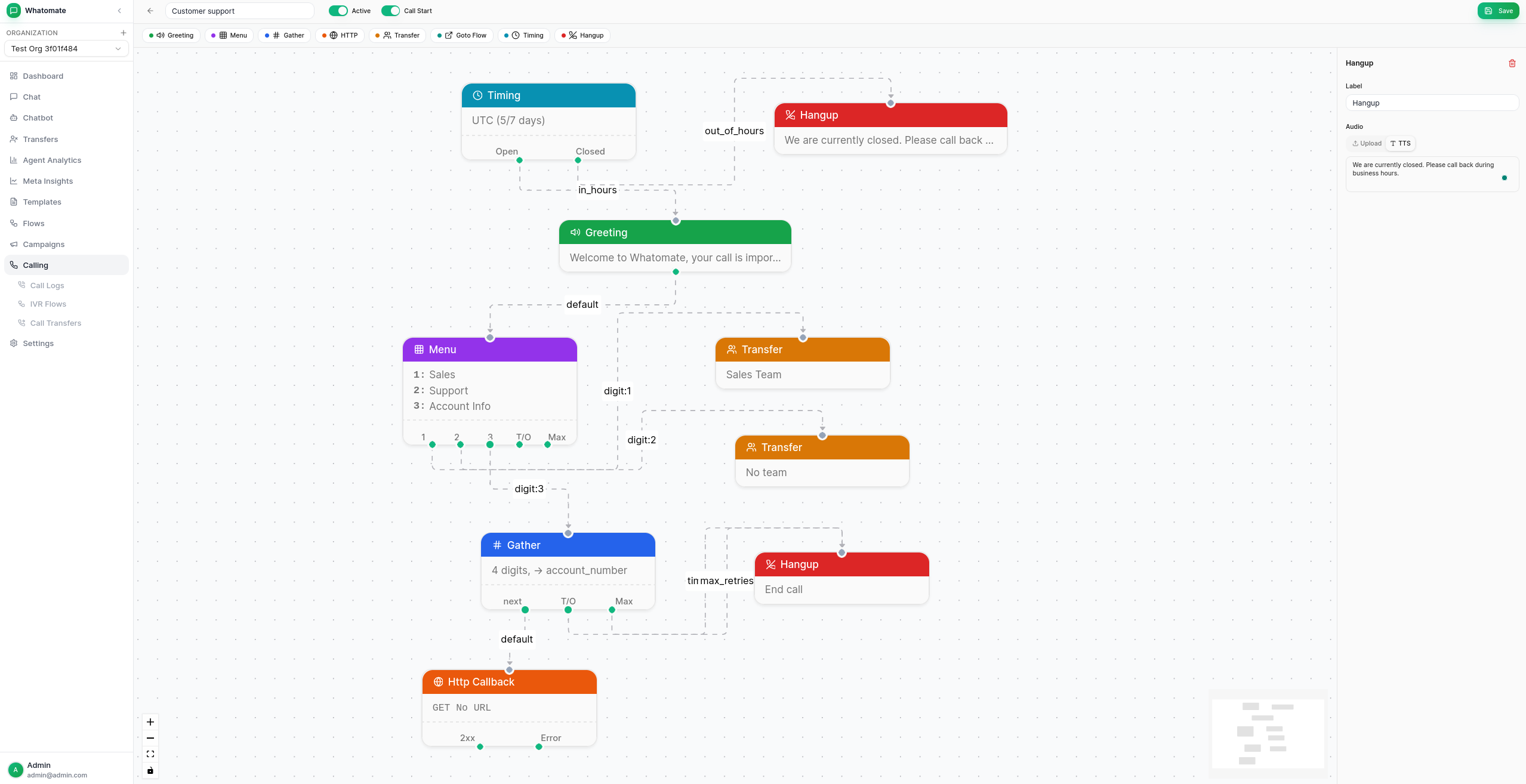
When a caller reaches a Transfer node:
During an active call, agents can put the caller on hold by clicking the Hold button (pause icon) in the call panel. Hold music plays immediately to the caller with seamless audio continuity — no gaps or clicks.
The hold button toggles between pause (hold) and play (resume) icons, with an amber highlight when the call is on hold. The status text in the call panel shows “On Hold” while held.
Hold music is configurable per organization from Settings > Organization > Calling. The default file is set in config.toml via hold_music_file.
When enabled, calls are recorded during the agent-caller bridge phase. Recordings are saved as OGG/Opus files and uploaded to S3.
To enable, add to your config.toml:
[calling]recording_enabled = true
[storage]type = "s3"s3_bucket = "your-bucket"s3_region = "us-east-1"s3_key = "AKIA..."s3_secret = "..."Recordings are accessible from the call log detail view, which generates time-limited presigned URLs for playback.
Agents can place outbound WhatsApp voice calls to a contact directly from the chat view. WhatsApp requires the consumer to grant call permission before an agent can dial them — so the flow is: request permission → wait for the consumer to accept → place the call.
Permission records track one of four states: pending, accepted, declined, or expired. Calling must be enabled for the organization (see Enabling Calling per Organization).
Both endpoints require the outgoing_calls permission (write to request, read to check).
/api/calls/permission-request{ "contact_id": "uuid-of-contact", "whatsapp_account": "account-name"}Sends the permission prompt to the contact via the WhatsApp Messages API and stores a pending permission record. Response:
{ "status": "success", "data": { "permission_id": "uuid" } }/api/calls/permission/{contactId}?whatsapp_account=account-nameQueries the current permission status directly from the WhatsApp API. Response:
{ "status": "success", "data": { "status": "accepted" } }/api/calls/outgoing{ "contact_id": "uuid-of-contact", "whatsapp_account": "account-name", "sdp_offer": "<browser WebRTC SDP offer>"}The browser generates a WebRTC offer; the server answers with an SDP answer and bridges the audio. Hang up with POST /api/calls/outgoing/{id}/hangup.
All calls (incoming and outgoing) are logged with:
Filter logs by status, direction, account, or IVR flow.
Add to your config.toml:
[calling]audio_dir = "./audio"                  # Directory for IVR audio fileshold_music_file = "hold_music.opus"    # Hold music file (relative to audio_dir); this is the defaultringback_file = "ringback.opus"        # Ringback tone for outgoing calls (no default — falls back to hold music)max_call_duration = 300                # Max call duration in seconds (default 300)transfer_timeout_secs = 120            # Seconds to wait for a team to accept a transferper_agent_timeout_secs = 0             # Global default: seconds to ring each agent before rotating (0 → falls back to 15; a team's own setting overrides this)recording_enabled = false              # Enable call recording to S3udp_port_min = 10000                   # WebRTC UDP port range startudp_port_max = 10100                   # WebRTC UDP port range endudp_mux_port = 0                       # One UDP port for every call (0 = off: one port per connection from the range)public_ip = ""                         # Public IP for NAT (required on cloud/AWS)relay_only = false                     # Force all media through TURN relay
# ICE servers (STUN/TURN) for WebRTC connectivity[[calling.ice_servers]]urls = ["stun:stun.l.google.com:19302"]
[[calling.ice_servers]]urls = ["turn:your-turn-server:3478"]username = "user"credential = "pass"Instead of a static username/credential, you can point Soosh at a coturn server running in use-auth-secret mode (the TURN REST API). Soosh then generates a fresh, short-lived credential for every client — no long-lived password is ever handed out.
[[calling.ice_servers]]urls = ["turn:your-turn-server:3478"]secret = "your-coturn-static-auth-secret" # matches coturn's `static-auth-secret`credential_ttl = 86400 # credential lifetime in seconds (default: 86400 = 24h)When secret is set, Soosh derives credentials on each request following the coturn REST convention: the username is the credential’s Unix expiry timestamp (<expiry>, or <expiry>:<username> if you also set username), and the credential is the base64-encoded HMAC-SHA1 of that username keyed by secret. The generated pair is returned by GET /api/calls/ice-servers for browser peer connections and is also used server-side when the IVR bridge builds its own peer connection.
On the coturn side, enable:
use-auth-secretstatic-auth-secret=your-coturn-static-auth-secretCalling is enabled per-organization in the database. Set calling_enabled = true on the organization record to allow calls for that org.
Soosh uses Piper for offline text-to-speech generation. When admins type greeting text in the IVR flow editor, the server generates OGG/Opus audio files using Piper + opusenc. This is optional — you can also upload pre-recorded audio files directly.
Piper requires the espeak-ng shared library at runtime, and opusenc is needed to convert WAV output to OGG/Opus:
# Debian/Ubuntusudo apt install espeak-ng opus-tools
# Fedorasudo dnf install espeak-ng opus-tools# Download Piper binary (Linux x86_64)wget https://github.com/rhasspy/piper/releases/download/2023.11.14-2/piper_linux_x86_64.tar.gztar xf piper_linux_x86_64.tar.gzsudo mv piper/piper /usr/local/bin/Piper voices are available at huggingface.co/rhasspy/piper-voices (mirrors at OHF-Voice). Each voice has a .onnx model file and a .onnx.json config file — both are required.
Choosing a voice:
low, medium, and high — medium is a good balance of quality and speeden_US-lessac-medium is recommended (~60MB)mkdir -p /opt/piper/models
# Download model and configwget https://huggingface.co/rhasspy/piper-voices/resolve/main/en/en_US/lessac/medium/en_US-lessac-medium.onnx \ -O /opt/piper/models/en_US-lessac-medium.onnxwget https://huggingface.co/rhasspy/piper-voices/resolve/main/en/en_US/lessac/medium/en_US-lessac-medium.onnx.json \ -O /opt/piper/models/en_US-lessac-medium.onnx.jsonAdd to your config.toml:
[tts]piper_binary = "/usr/local/bin/piper"piper_model = "/opt/piper/models/en_US-lessac-medium.onnx"# opusenc_binary = "opusenc" # defaults to finding in PATHecho "Press 1 for sales, press 2 for support." | piper \ --model /opt/piper/models/en_US-lessac-medium.onnx \ --output_file test.wavopusenc --bitrate 24 test.wav test.ogg# Play: aplay test.wav OR ffplay test.oggFor WebRTC to work, ensure the following ports are open:
| Port | Protocol | Purpose |
|---|---|---|
| 10000–10100 | UDP | WebRTC media (configurable via udp_port_min/udp_port_max) |
udp_mux_port |
UDP | WebRTC media for every call, when set (replaces the range above) |
| 3478 | TCP/UDP | TURN server (if using relay) |
Without udp_mux_port, each WebRTC connection takes one UDP port from udp_port_min–udp_port_max, and a call with an agent on the line uses two connections (WhatsApp and the agent’s browser). The default range of 101 ports therefore carries about 50 simultaneous calls; the next call gets no network route and fails.
Set udp_mux_port to carry every call on a single UDP port instead. Ports then don’t limit concurrent calls (CPU and bandwidth do). Open that one port in your firewall, and set public_ip: with both set the server skips STUN, which would otherwise still bind a range port per call. With relay_only = true, media goes through TURN and neither setting applies.
The Calling check on each WhatsApp account shows which mode is active and, in range mode, how many ports are in use. The server also logs a warning when the range is 90% used.