Text Input
Single-line and multi-line text fields
Build native WhatsApp interactive experiences
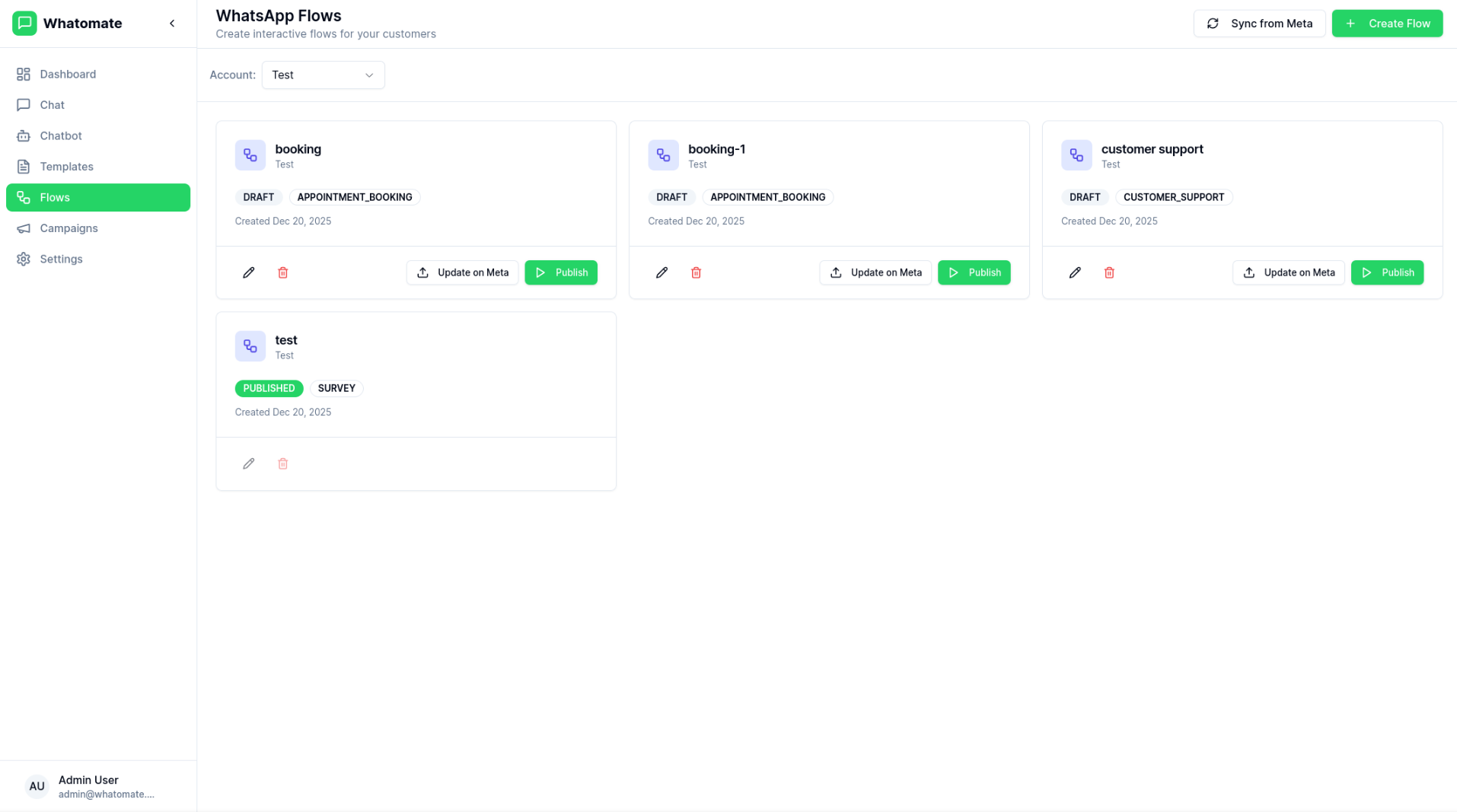
WhatsApp Flows enable businesses to create rich, interactive experiences directly within WhatsApp. Unlike regular messages, Flows provide native UI components like forms, dropdown menus, and multi-screen journeys.
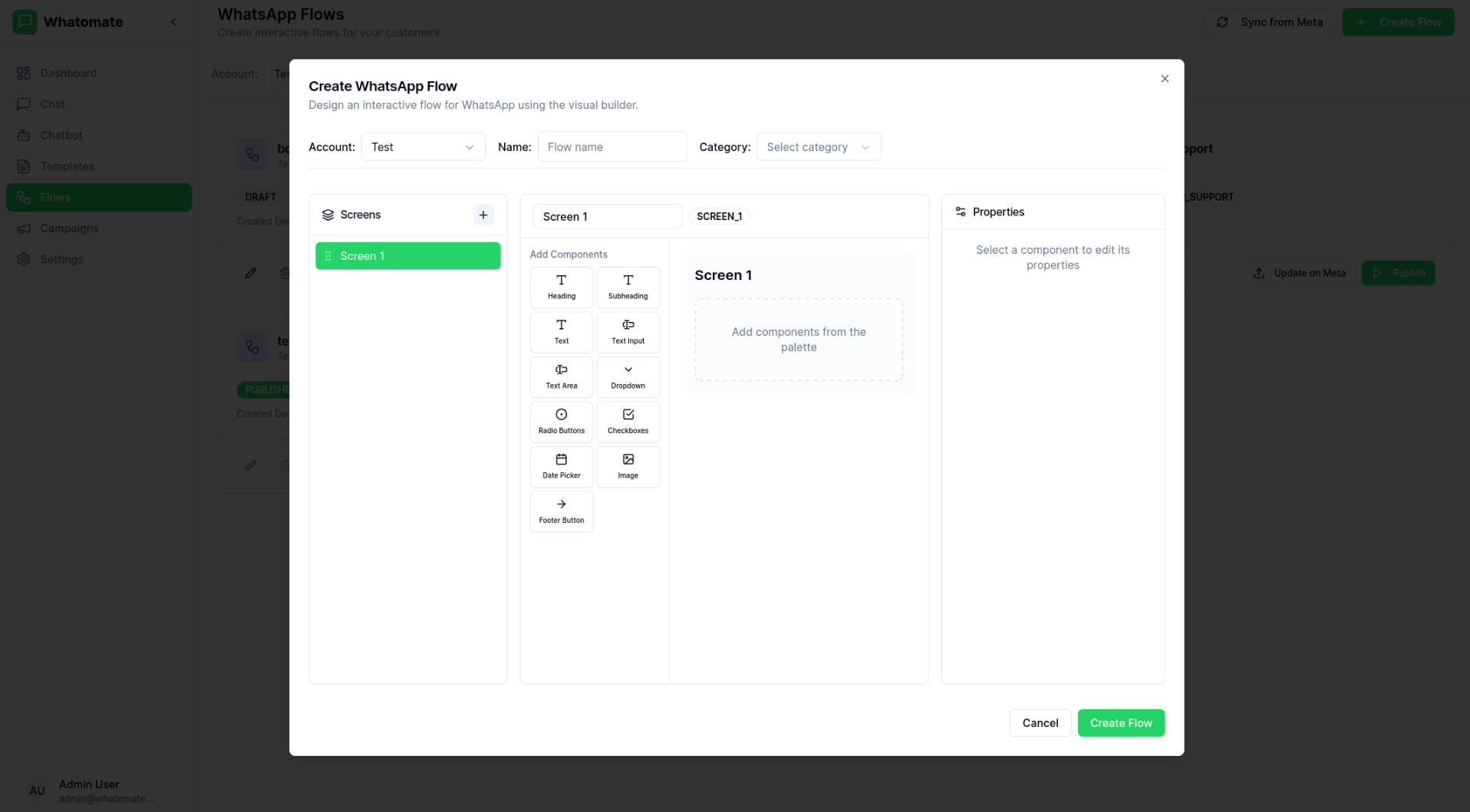
Soosh provides a visual Flow Builder to design and manage your WhatsApp Flows:
WhatsApp Flows support various UI components:
Text Input
Single-line and multi-line text fields
Dropdown
Selection menus with multiple options
Date Picker
Native date selection component
Radio Buttons
Single-select option groups
Checkboxes
Multi-select options
Buttons
Action buttons for navigation
Create
Design your flow using the visual builder or JSON editor.
Save to Meta
Push your flow to Meta’s WhatsApp Business API.
Test
Test the flow in draft mode before publishing.
Publish
Make the flow available for use in messages.
| Status | Description |
|---|---|
| Draft | Flow is being designed, not yet available |
| Published | Flow is live and can be sent to users |
| Deprecated | Flow has been retired |
Publishing requires a Draft flow, so a flow that is already Published or Deprecated can’t be edited in place. To change one, use Duplicate: it clones the flow into a fresh Draft copy (named “… (Copy)”) with a new, empty Meta flow ID. Edit the copy, save it to Meta, and publish it — leaving the original untouched. This is the intended path for revising a live flow.
Integrate WhatsApp Flows into your chatbot conversation flows:
Send flows programmatically using the REST API:
POST /api/messages{ "contact_id": "...", "type": "flow", "flow_id": "...", "flow_token": "...", "header": "Complete Your Order", "body": "Please fill in the details below", "button_text": "Start"}